
What Is a Passkey? How It Works and Why It Beats Passwords
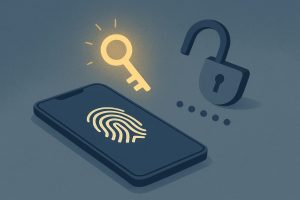
A passkey is a way to sign in to apps and websites without a password. Instead of typing a secret, you unlock your phone or computer with your fingerprint, face or PIN, and your device proves who you are. This guide explains what a passkey is, how it works, why it is safer than a password, and how to set one up on Google, Apple, Microsoft and other accounts. What Is a Passkey, in Plain Terms? A passkey replaces your password with a pair of digital keys: A public key, which is stored by the website or app. A private key, which stays on your device and never leaves it. When you sign in, the website sends a challenge to your device. Your device signs it with the private key after you unlock it with your fingerprint, face or PIN. The website checks the signature using the public key. If it matches, you are in. You never type anything, and the website never sees your private key. Passkeys are built on open standards from the FIDO Alliance, an industry group that includes Google, Apple and Microsoft, so they work across most modern devices and browsers. Passkey vs Password: What Is the Difference? Nothing to steal from you. A password can be guessed, reused or tricked out of you. A passkey cannot be typed into a fake page, because there is nothing to type. Nothing useful to steal from the company. When a company’s password database is breached, criminals can try those passwords elsewhere. A breached public key is useless on its own. Built-in phishing protection. A passkey only works on the exact website it was created for. A lookalike site cannot use it, even if you are fooled into visiting it. Faster. Signing in takes a touch or a glance instead of typing a password and a code. Is a Passkey the Same as Two-Factor Authentication? Not exactly, but it does the same job better. Two-factor authentication adds a second step, such as a code sent by text, on top of a password. A passkey combines two factors in one step: something you have (your device) and something you are or know (your fingerprint, face or PIN). Codes sent by text message can be intercepted or tricked out of you, which is how many accounts are taken over. Our guides Facebook Account Hacked? and Instagram Account Hacked show how often that happens. Passkeys close that gap. A passkey is a small step towards identity that lives with you instead of on a company’s server. That idea is at the core of Wes Kussmaul’s Escape the Plantation, and you can get a free copy at the end of this article. How to Set Up a Passkey The exact steps vary, but the process is similar everywhere. You need a reasonably recent device, such as an iPhone on iOS 16 or later, an Android phone on Android 9 or later, a Windows 10 or 11 computer, or a Mac on macOS 13 or later. Google Go to your Google Account, open Security, and choose Passkeys and security keys. Select Create a passkey and follow the prompts. Google stores passkeys in Google Password Manager, which syncs them to your other signed-in devices. Apple On Apple devices, passkeys are saved in iCloud Keychain. When a website or app offers a passkey, accept it and confirm with Face ID or Touch ID. It then syncs to your other Apple devices signed in to the same Apple Account. Microsoft Sign in to your Microsoft account, go to Security, and look for the option to add a passkey or a new sign-in method. Windows Hello lets you confirm with your face, fingerprint or PIN. Other sites Many services, including Amazon, PayPal, WhatsApp, Facebook and major banks, now offer passkeys. Look in the account’s security or login settings for “passkey”. If a site offers to create one when you sign in, it is usually worth accepting. What Happens If You Lose Your Phone? This is the most common worry, and it is manageable if you plan ahead: Synced passkeys survive. If your passkeys are stored in iCloud Keychain, Google Password Manager or a password manager such as 1Password or Bitwarden, you can sign in on a new device and they return. Set up more than one device. Add passkeys on your phone and your computer, so losing one does not lock you out. Keep a backup method. Leave a recovery email, phone number or backup codes set up on important accounts. Remove the lost device. Sign in to your account from another device and delete the passkey linked to the lost one. The Limitations of Passkeys Not every site supports them yet, so you will still need passwords for some accounts. Moving between ecosystems can be awkward. iCloud Keychain does not sync to Android, for example. A cross-platform password manager can solve this. Shared devices need care. Do not create passkeys on a computer other people use. Account recovery is still the weak point. If a site lets anyone reset your account by text message, attackers may target that instead. Why Passkeys Matter for Your Digital Identity Passwords put the burden of security on you, while the real secrets sit on a company’s server waiting to be breached. Passkeys flip that: the secret stays with you, on your device. It is a small but meaningful shift in who holds your identity online, a question we explore in Digital ID Privacy: Who Holds Your Data Changes Everything and Digital Identity Explained. Frequently asked questions What is a passkey and how does it work? A passkey is a password replacement made of two keys: a public key held by the website and a private key kept on your device. You unlock the private key with your fingerprint, face or PIN, and your device uses it to prove who you are without sending any secret to the website. Is a passkey safer than a password? Yes. Passkeys cannot be guessed,